Thursday, 11 September 2014

Samsung Galaxy Note 4

Since the official release of iPhone 6, there would be lots of talk regarding that phone. I guess I am an Android fan and user so I would not be writing much about the iPhone 6 yet. Instead I will be channeling my attention to the Samsung Galaxy Note 4. I used to dream about upgrading my phone to the Galaxy Note 3 and now it's like Galaxy Note 4.


Here is the official video for the Samsung Galaxy Note 4.


At this moment, I believe this is the phone that you would definitely like to own if you are an Android user. Samsung spends a lot in their R&D and they listen to the customer's feedback on the phone and what people would like to have in them.

Some key improvements to the phone worth mentioning is the capability to quickly charge your phone that is flat to 50% battery life in just 30 minutes! That's right you read it all correctly. You will be able to do so in a fast manner like how the Oppo 7 phone charges. Actually the Oppo 7 phone is able to charge to 75% battery life in just 30 minutes! As a smartphone user, you will definitely know it's a pain to wait for your phone to be fully charged. I personally believe these rapid charging feature is great for all and more phones should adopt this.

The Galaxy Note phone has the magical S Pen and with the launch of the new Note 4, the S Pen features have been enhanced. The S Pen is even more powerful now and it allows you to drag drop, copy, highlight and instant editing with the in-built applications.


The phone is already that amazing with the features above but there is more! My advise would be heading to the Samsung stores and get your hands-on with the phone. There is no way to explain until you really experience it yourself! 


Wednesday, 10 September 2014

Check out the MI Portable WiFi

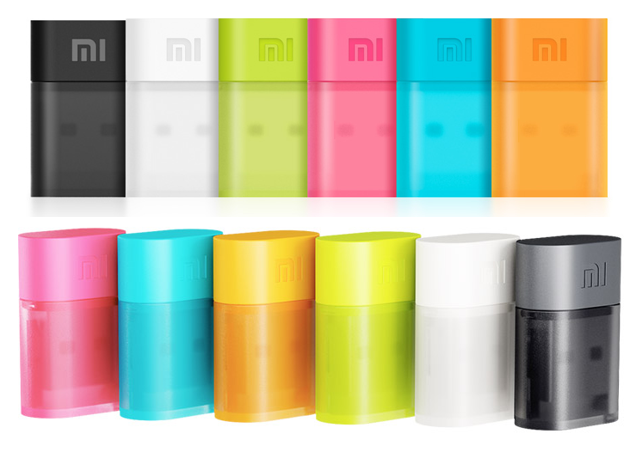
This is a guide on how to use the Xiaomi Portable WiFi. The Xiaomi product is available in the following colours. The shape of it is just like a mini pendrive.


The portable WiFi requires the device software called miwifi_setup_2.2.662.exe which can be downloaded from http://miwifi.com or shared from http://goo.gl/rxTsZB I would recommend that you download it off the Dropbox link as it would be much faster compared to the http://miwifi.com website.


If you wish to download the software from the official website, please note that the website is in Chinese. Click on the text circled in RED.


That would bring you to the download site for the device software. The installation is performed for the Windows based computers and you should click on the link in RED.


Alternatively, you can browse to http://mi1.cc/down302?c=100_1_miwifi_PC to obtain the device software. You can also download the device software from the Dropbox link below.
http://goo.gl/rxTsZB

You will receive the prompt to save the exe file to a specific location on your computer. Save it in a location where you will be able to access it easily.


By default, the saved file will be in the Downloads folder. Browse to the saved location to ensure that the file has been saved successfully. To run the setup, double click on the miwifi_setup file. Change the location if you are familiar else click on the box in blue to proceed with the installation. Please note that you should not plug in your mi Portable WiFi yet and you shall be advised later during the installation.


Click on the box in white and you will be asked to configure the wireless network.


When you see this, you should be plugging the portable WiFi into any of the USB ports on the computer. The required drivers for the device will be installed automatically.


Based on the colour of the dongle, the screen below will represent that colour. By default, the SSID and password for the wireless network has been configured. You can always make modification to it by clicking on the edit button on the right. Enjoy your new WiFi network!